One app, one subscription, two devices
Install the app on your iPad from the App Store and use Restore Purchases to bring your subscription across; there is nothing else to buy. Progress is stored on each device, though, and does not sync between them, so decide early which device carries your lessons and mocks.
The app supports Split View and Slide Over, so a lesson can sit beside your own notes while you read, and a drill can stay open in a corner of the screen while you work on something else.
Reading the lessons on iPad
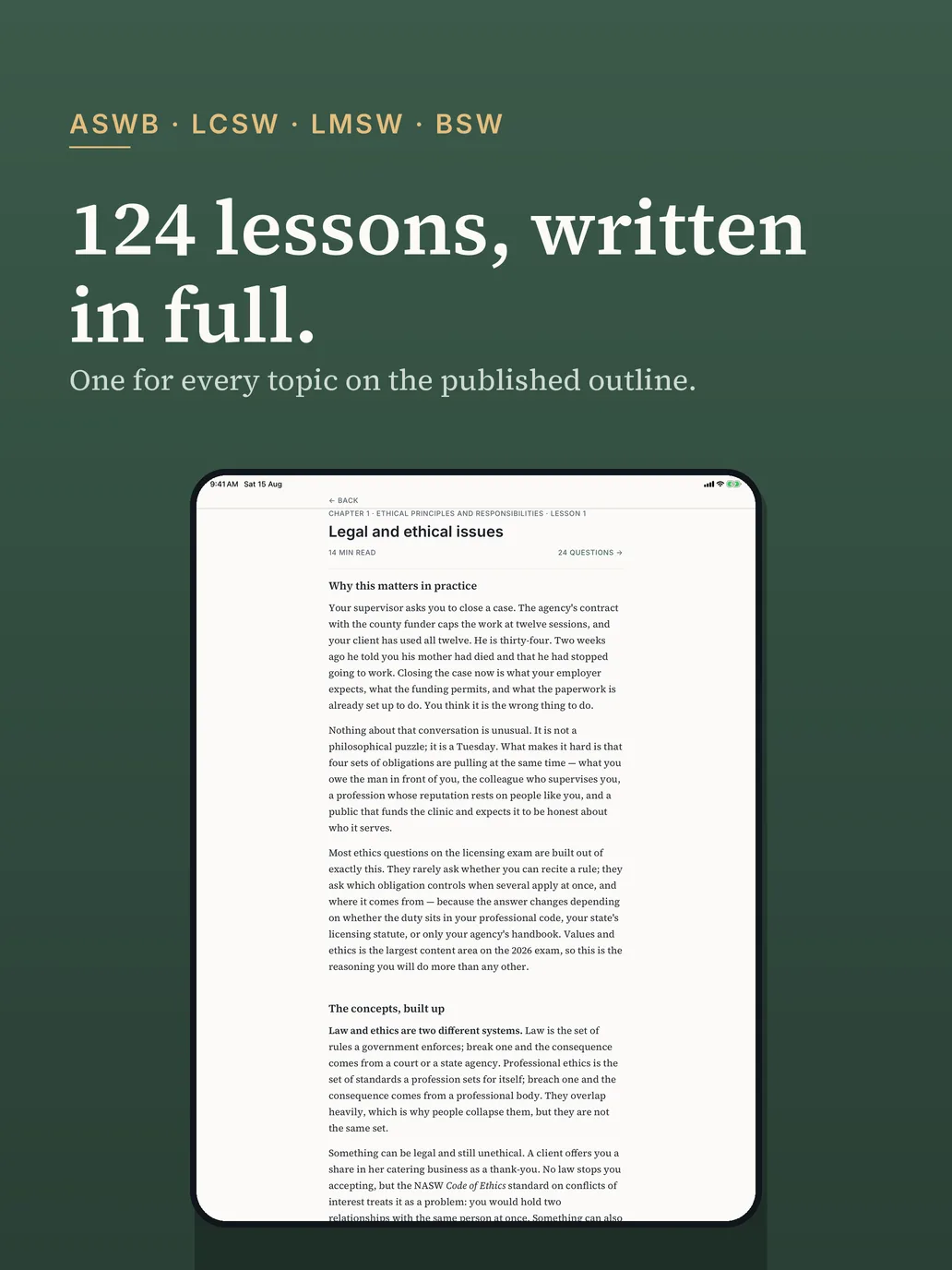
The lessons are written in full, as continuous teaching. Each opens with a practice situation, builds the concepts up, and ends with its questions. On iPad the reading column is wider and the type larger, which makes the longer lessons, some of them a 14-minute read, easier going than on a phone.
The app remembers the section where you stopped, so a lesson begun on the iPad in the evening reopens at the same place the next evening. It does not carry across to your phone, because progress stays on the device.
Drills and full-length mocks on the bigger screen
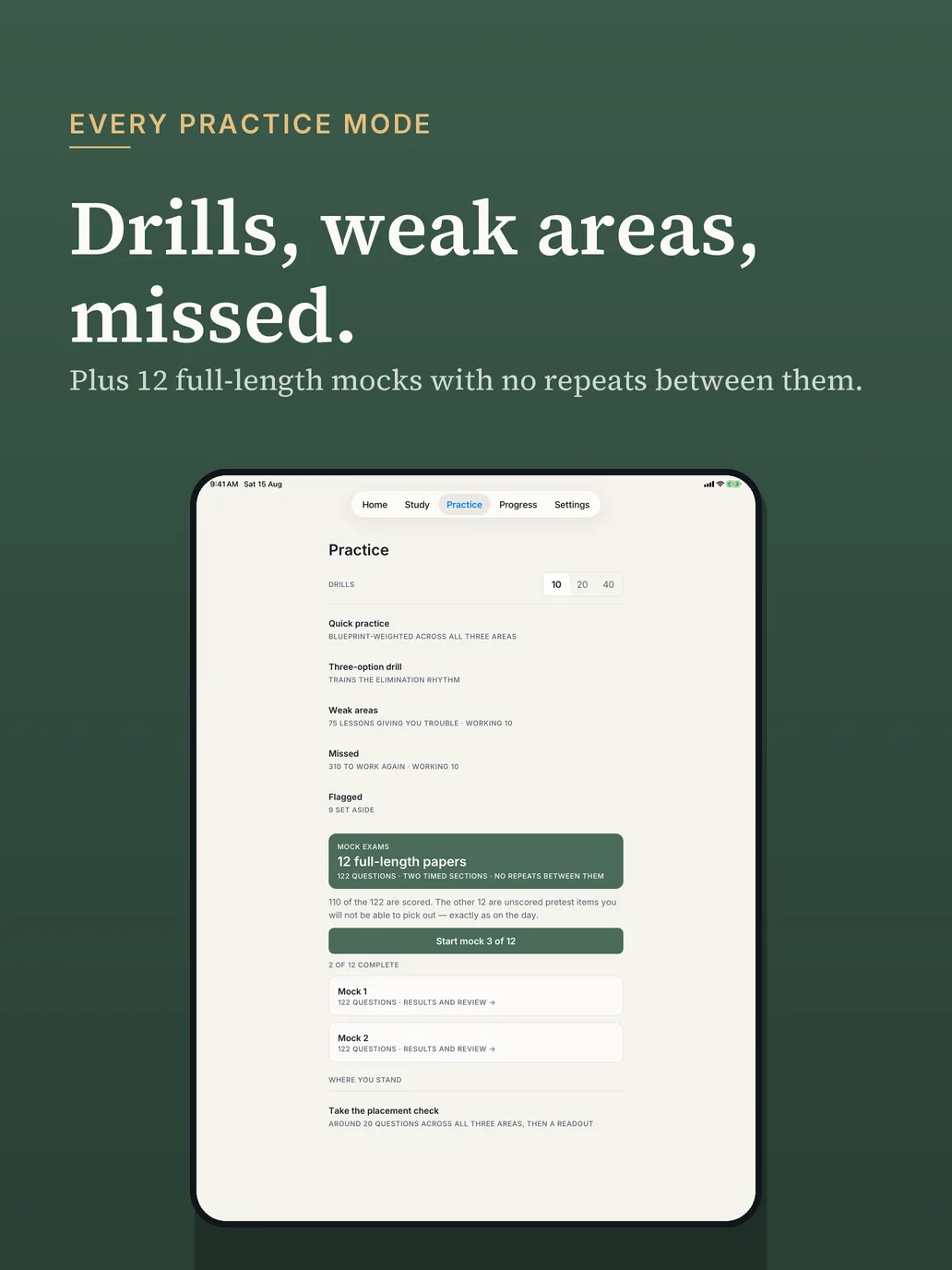
The Practice tab gathers every mode in one place: quick practice weighted across the outline, a three-option drill that trains elimination, a weak-areas queue built from the lessons giving you trouble, your missed and flagged questions, and the 12 full-length mocks for your exam. Drills run 10, 20 or 40 questions.
A mock on iPad is the closest the app comes to the test-center screen: two sections of 61 questions with a two-hour clock each, highlight and strike-through, a review screen, text size and a contrast setting. Prop the iPad up on a table, turn on Do Not Disturb, and sit it in one go (what the exam format demands).
Reviewing a finished mock
The review is where a mock earns its four hours, and it is easier on a larger screen. The results screen breaks your score down by content area, and "Review all 122" walks through every question with its rationale, with the twelve pretest items marked so you can see which questions never counted.
On iPad the text is larger and there is less scrolling, which makes it practical to go through all 122 in one sitting the evening after the mock, while the reasoning you used is still fresh. Note the content area of every miss as you go; the list tells you what to drill before the next one.
Setting the iPad up for a full mock
Three settings make an iPad behave more like a test-center workstation. Turn on Do Not Disturb, or a Focus mode, so nothing slides in during a section. If you are prone to checking things, Guided Access (in Settings, under Accessibility) locks the iPad to the one app until you end it with a triple-click and a passcode. And set the text size and contrast in the mock's own toolbar before you start, so you are not adjusting them with the clock running.
Put the iPad on a stand or a case at an angle you could hold for two hours, and sit at a table. A comfortable position matters more in the second section than the first, when two hours of careful reading have already gone by.
Which iPads it runs on
Any iPad that runs iPadOS 16.4 or later. The download is 65.5 MB and everything is stored on the device from the first launch, so a Wi-Fi-only iPad works anywhere, including on a train or in a library with poor coverage (studying offline).
A routine that suits two devices
One split that works well: lessons and mocks on the iPad, at a table, two or three times a week, and ten-question drills on the iPhone in the gaps of the day. Because progress lives on each device, give each one a job and keep to it. If you would rather have a single record of everything, study on one device and treat the other as a spare.
Quick answers
- Do I need to buy the app twice for iPhone and iPad?
- No. It is a universal app and one subscription covers both. Install it on the second device and use Restore Purchases.
- Does my progress sync between iPad and iPhone?
- No. Progress is stored on the device you study on, so each device keeps its own. Either study on one device and keep the other as a spare, or give each a job, such as lessons and mocks on the iPad and short drills on the phone.